Geocode Thousands of Google Sheets Rows in Seconds
Geocoding is the process of turning addresses into geographic coordinates, like latitude and longitude. Instead of just knowing an address as a street name and number, geocoding helps computers and mapping software place that location on a map with precise points. This makes visualizing addresses, analyzing location-based data, and even getting directions from one place to another much easier.
The process works by matching an address to a database of known locations, cross-referencing street names, postal codes, and other geographic details. Reverse geocoding does the opposite—it takes latitude and longitude and finds the closest known address. This can be useful in mobile apps, a GPS, or any other situation where coordinates need to be translated back into human-friendly locations.
Geocoding is widely used, in everything from city planning to ride-sharing apps. Businesses use it to better understand their customers, while emergency services rely on it to quickly locate people in need. Even social media platforms use geocoding to tag locations on posts.
But what do you do if you have thousands of addresses in a Google Sheet and want to turn them into geocodes? You could look them up individually but that would take hours and be unbelievably tedious. Luckily for you, this article is here to help you solve that problem.
Option 1: Install a Google Sheets Add-On
Using a Google Sheets add-on is the quickest option. While several add-ons exist, the one we’ll discuss is Geocode for Sheets & Mapping Sheets.
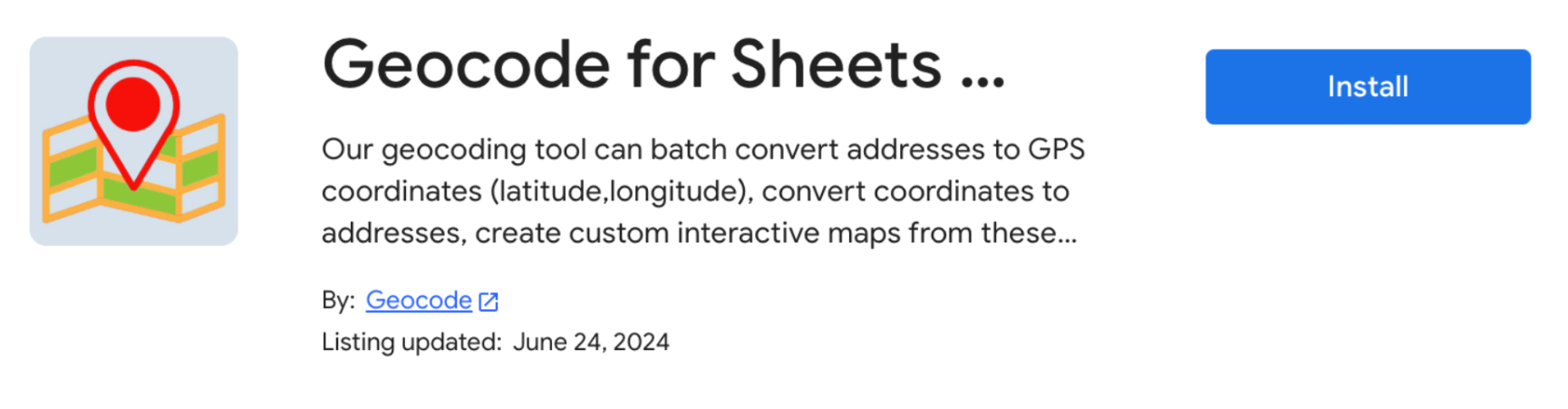
To install, visit the add-on page and select Install.
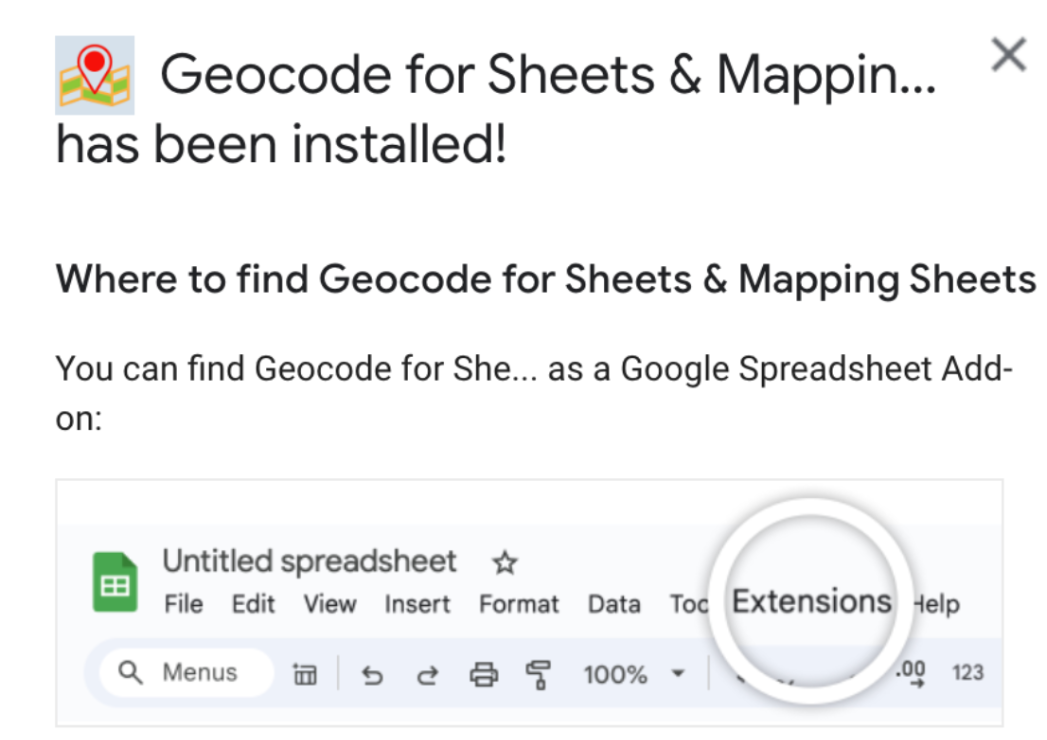
Once it’s installed, open the Google Sheet with your data and select Extensions.
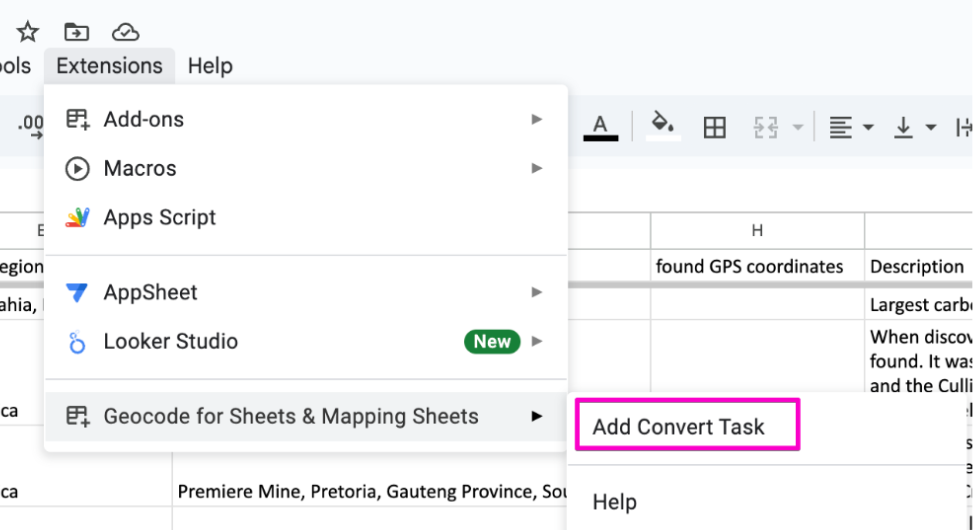
Hover over the Geocode for Sheets & Mapping Sheets menu and select Add Convert Task.
Create a Task for Address to Coordinates and then choose your Settings.
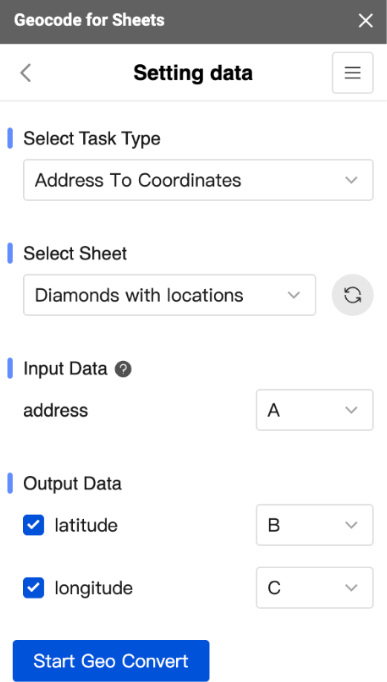
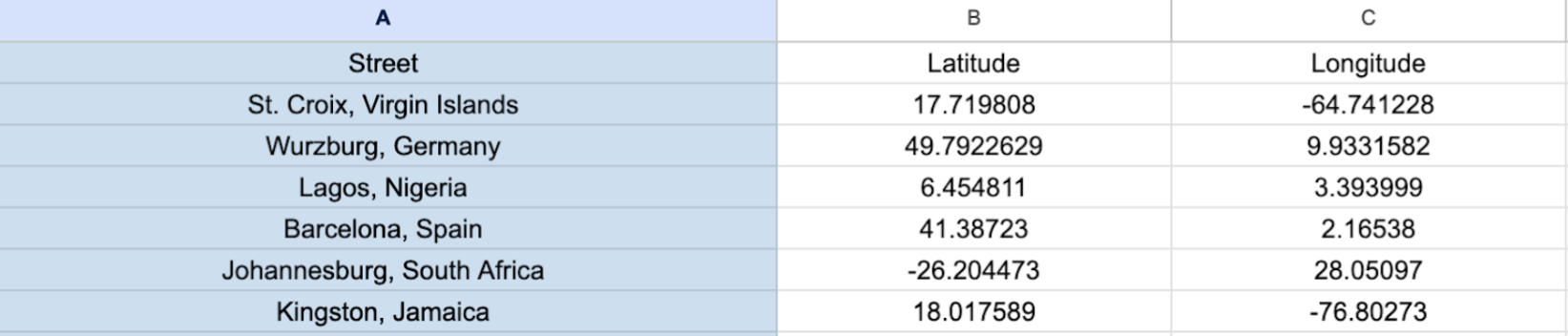
Once you’ve run your Geo Convert you’ll have a latitude and longitude for your input data.
One downside of the add-on method is that extensions typically require payment to convert more than 100 rows or so.
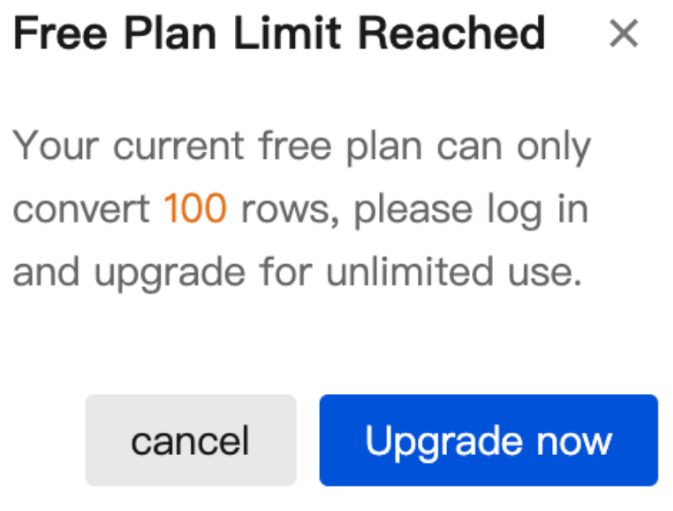
If you’re going to be doing this on a routine basis, upgrading may make sense, but if you aren’t doing this often, keep reading for another option.
Interactive Maps Made Easy
Sign Up NowOption 2: Use a Geocoding API (May Require Coding Skills)
If you have some tech know-how, a geocoding API service can be a great option. While not every service is free, there are several that are or have generous free data limits. Rather than going into all of the specifics here, we’ve written a separate article all about the options.
You can read about open data and open source geocoders where you’ll find a breakdown of five different options and what their limits are. For further reading, you can also explore some of the fastest options available.
Make a Map for Free Today
Do you have a spreadsheet full of data just waiting to be put to use? Whether it’s customer locations, business addresses, or delivery routes, mapping can bring that information to life and reveal patterns you might not catch in a simple list.
BatchGeo makes it easy to turn your data into a custom map in minutes. Not sure where to begin? Start with sample data to see it in action before mapping your own. The best part? We’ll do the geocoding for you, so it’s one less thing for you to worry about. Try it today for free!