Three Ways to Merge Data From Multiple Spreadsheets
A map is only as useful as the data behind it. When job assignments are stored in one spreadsheet and site addresses in another, you can’t map your team’s workload, identify coverage gaps, or plan efficient routes until those two sources become one.
This article explores three ways to combine data from multiple sources into a single, mappable spreadsheet: a quick manual method, a formula-driven approach that scales well, and an AI-assisted option that can handle the messy cases the other methods miss.
The Scenario
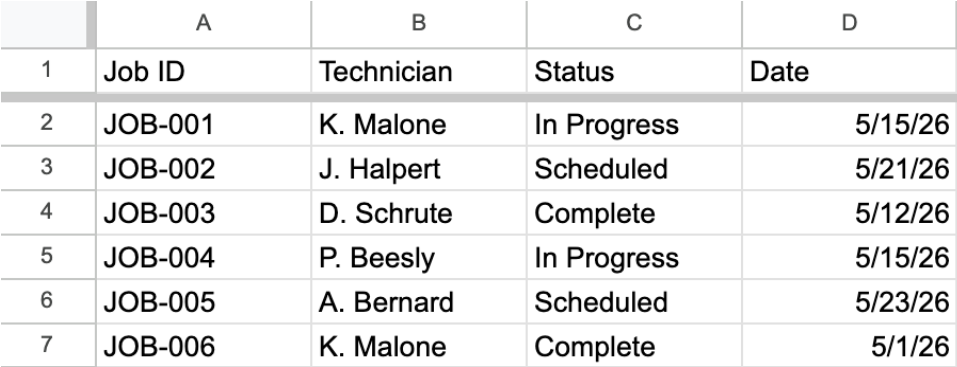
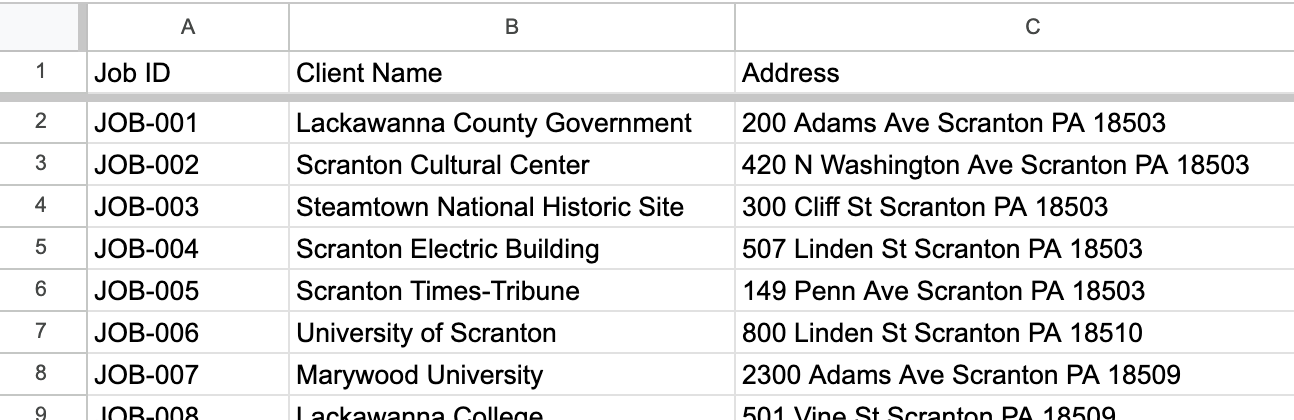
Imagine your field team manages service calls across multiple sites. You have two spreadsheets: one tracks job assignments with columns for “Job ID”, “Technician”, and “Status”. The other is a client directory with “Job ID”, “Site Name”, and “Address”. The assignments sheet has no addresses, while the site directory doesn’t include technician or status data. To map the work effectively, you need to combine both sources into a single spreadsheet containing all of the relevant data.
Method 1: Copy and Paste
If your two datasets are small and the columns match up cleanly, a manual fix is typically the quickest option. Open both spreadsheets, add the missing columns from the second sheet to the first, and copy the corresponding values into each row.
In the example above, that means opening the client directory, finding “JOB-001”, and typing “Lackawanna County Government” and its address into the corresponding row of the assignments sheet. Repeat for each job.
This approach works for a one-time merge on a small dataset. The limitation is obvious: at 30 rows it’s tedious, and at 300 rows, it’s error-prone enough to be unreliable. If the data updates regularly, you’ll be doing this again next week—or even sooner.
Method 2: VLOOKUP on a Shared Column
When both sheets share a common column, a VLOOKUP formula can do the merging automatically. In this case, “Job ID” appears in both sheets, which makes it the key.
In the assignments sheet, add two new columns: Client Name and Address. In the first empty cell under Client Name, enter this formula:
=IFERROR(VLOOKUP(A2,ClientDirectory!A:C,2,FALSE),A2)
Interactive Maps Made Easy
Sign Up NowIn the Address column, enter the same formula but change the column index from 2 to 3:
=IFERROR(VLOOKUP(A2,ClientDirectory!A:C,3,FALSE),A2)
In this example, A2 is the “Job ID” in the assignments sheet, ClientDirectory!A:C is the full range of the client directory, 2 or 3 tells the formula which column to return, and FALSE ensures an exact match. Drag both formulas down to apply them to every row, then copy and paste the results as values before importing the data into BatchGeo.
One important pitfall: VLOOKUP requires the “Job ID” to match exactly in both sheets. If one sheet uses “JOB-001” and the other uses “Job 001” or “job001” the formula will return nothing. Clean up any inconsistencies in the shared column before running the formula.
Method 3: Use AI to Merge Your Data
When the two datasets don’t share a clean common column, or when inconsistencies in the data make VLOOKUP unreliable, AI can often handle the merge more effectively. Simply copy both datasets and paste them into an LLM with a prompt like this:
I have two datasets. The first is an assignment sheet with Job ID, Technician, and Status. The second is a client directory with Job ID, Client Name, and Address. Merge them into a single sheet using Job ID as the key. Return only the merged data as a CSV with columns: Job ID, Technician, Status, Client Name, Address.
The LLM will return a clean merged dataset ready to paste into your spreadsheet. Review the output before using it, particularly if your data includes any inconsistencies.
Create Your Own Map
Once your data is merged into a single sheet, mapping it is straightforward. Paste it into BatchGeo and it will geocode your addresses automatically, turning your combined dataset into an interactive map. From there you can filter by technician, status, or any other column to see your team’s workload geographically.
Give BatchGeo a try and see how quickly your merged data becomes a map.