Extracting GPS Coordinates From Photo Metadata
Metadata
It’s easy to accumulate hundreds of photos and only a vague memory of where some were taken. You might remember the occasion or the general area, but not the exact location a photo was captured. Fortunately, your photos most likely already contain that information.
Most modern smartphones and many digital cameras automatically record location data when a photo is taken. That data is stored inside the image file itself and can include precise GPS coordinates. You don’t need special equipment to access it —just an understanding of where that data lives and how to extract it.
What is EXIF Data?
Exchangeable Image File Format (EXIF) is the metadata stored within many image files alongside the photo itself. This metadata can include details like the date and time a photo was taken, the camera or phone used, and, when location services are enabled, GPS coordinates.
When a photo includes location information, it’s typically stored as latitude and longitude values. Not every photo includes this data, as it depends on device settings and permissions. However, when location data is available, it can be viewed without altering the image itself. The key is knowing which tools can access that embedded information.
Option 1: Viewing Location Data Manually
To quickly check or view location data from a single photo, you can view EXIF information directly using built-in tools on your computer.
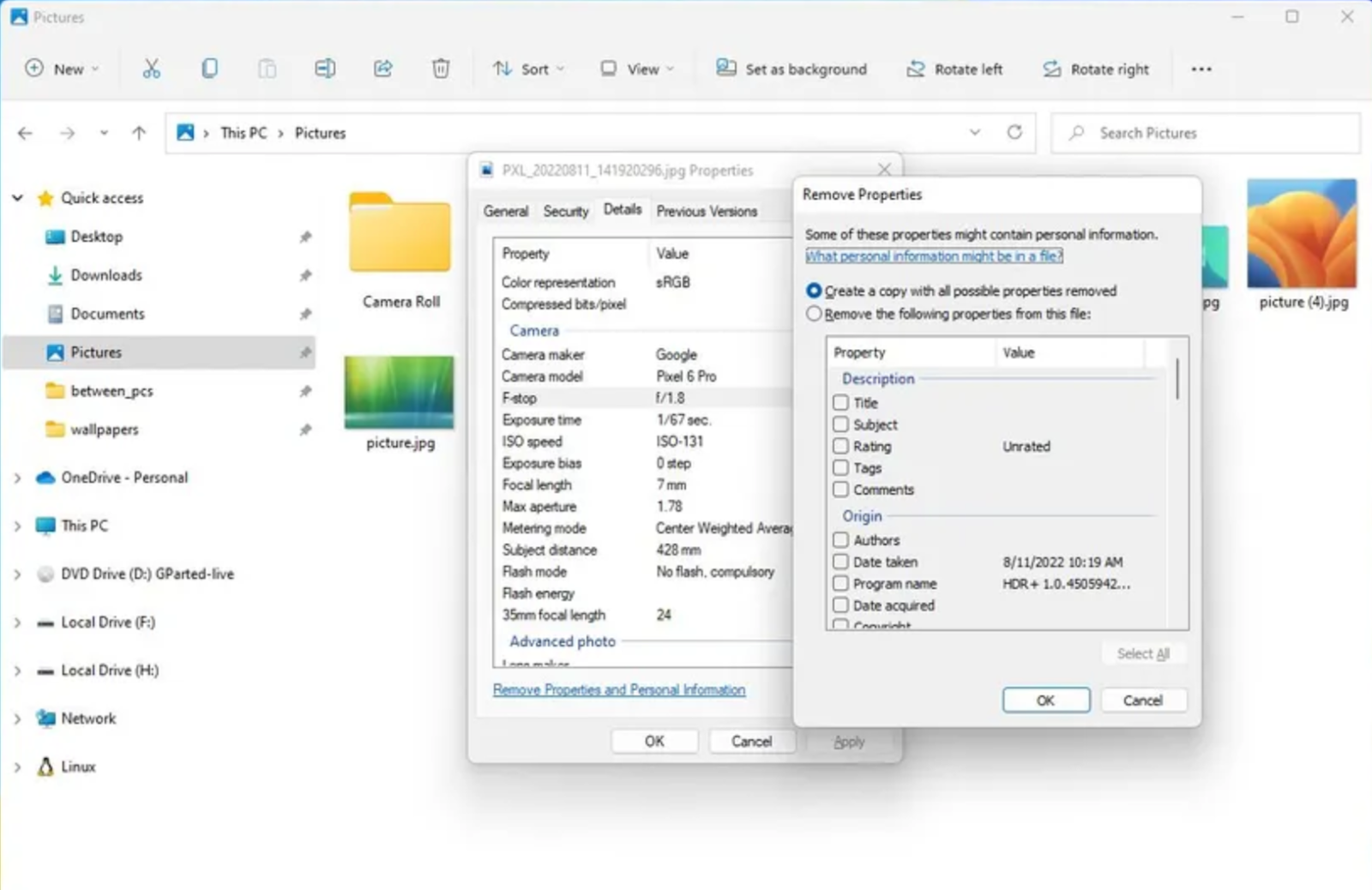
Windows 11
- Open a photo in File Explorer.
- Right-click and choose Properties.
- Open the Details tab and scroll to the GPS fields.
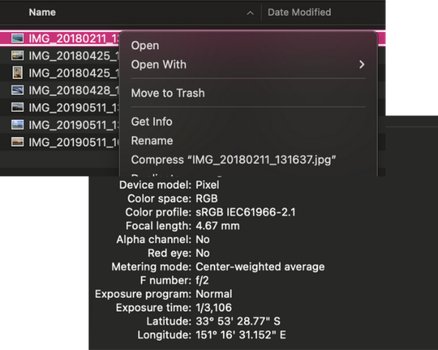
macOS
- Right click on any photo in Finder.
- Choose Get Info.
- Look for location details in More Info.
This approach is best for quick checks or confirming that a photo includes GPS data before extracting locations in bulk.
Option 2: Using Software to Extract Locations in Bulk
When you’re working with a large number of photos, software tools are a faster and more reliable option than checking files individually and recording the results. There are several ways to approach this, depending on how technical you want to get.
Some desktop programs can read EXIF metadata from entire folders and export GPS coordinates or other metadata in bulk. Command-line tools like ExifTool are widely used for large collections and automation, while simpler desktop utilities such as Exif Pilot focus specifically on pulling location fields into a spreadsheet.
Interactive Maps Made Easy
Sign Up NowAnother option is to use a web-based tool like PhotoLocation.info, which doesn’t require installing any software and is entirely browser-based.
As a quick demonstration, the basic workflow in PhotoLocation.info is:
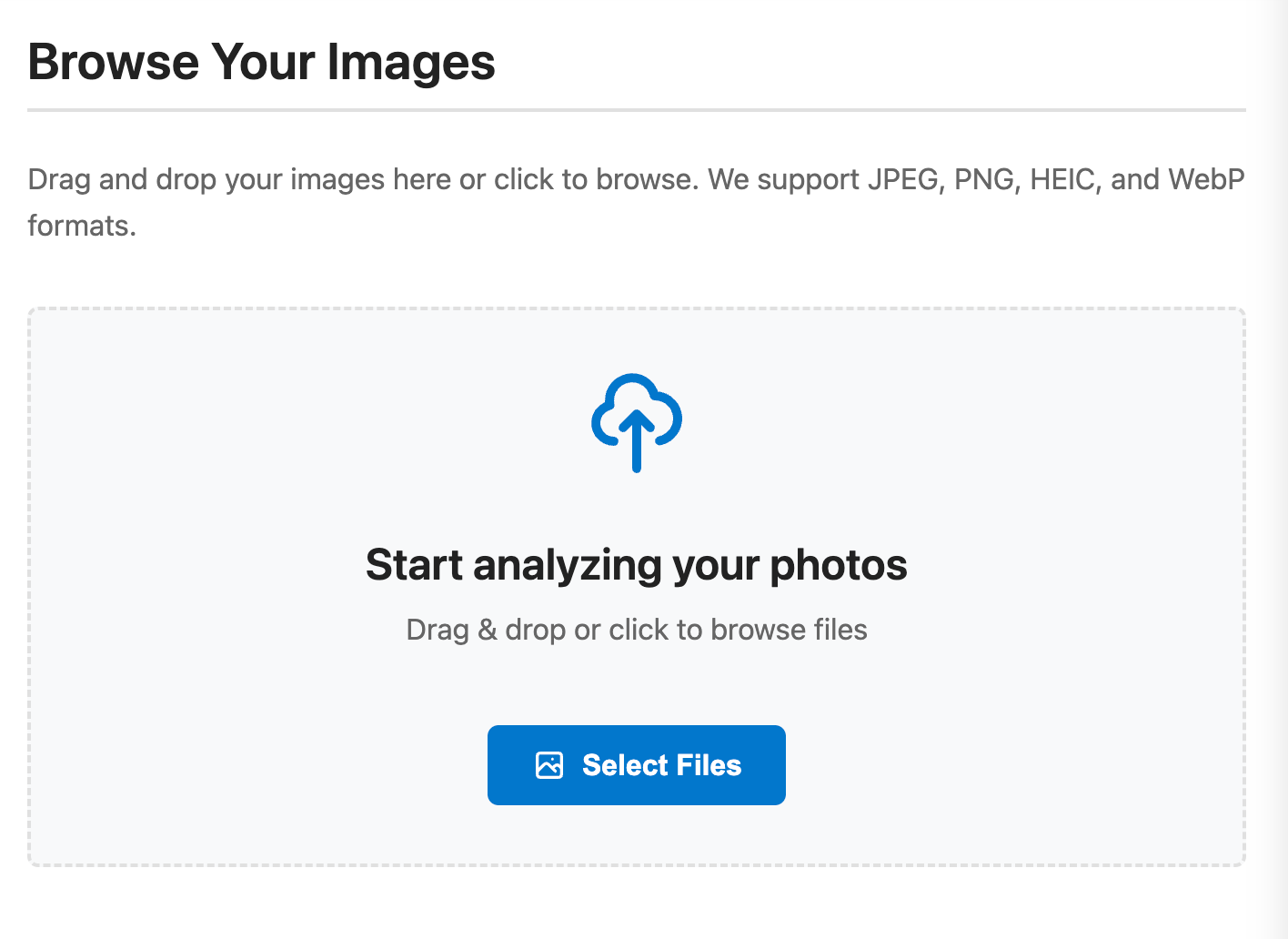
- Upload a group of photos from your computer or drag and drop them into the upload area.
- The tool scans each image for EXIF GPS data and displays latitude and longitude values in a table.
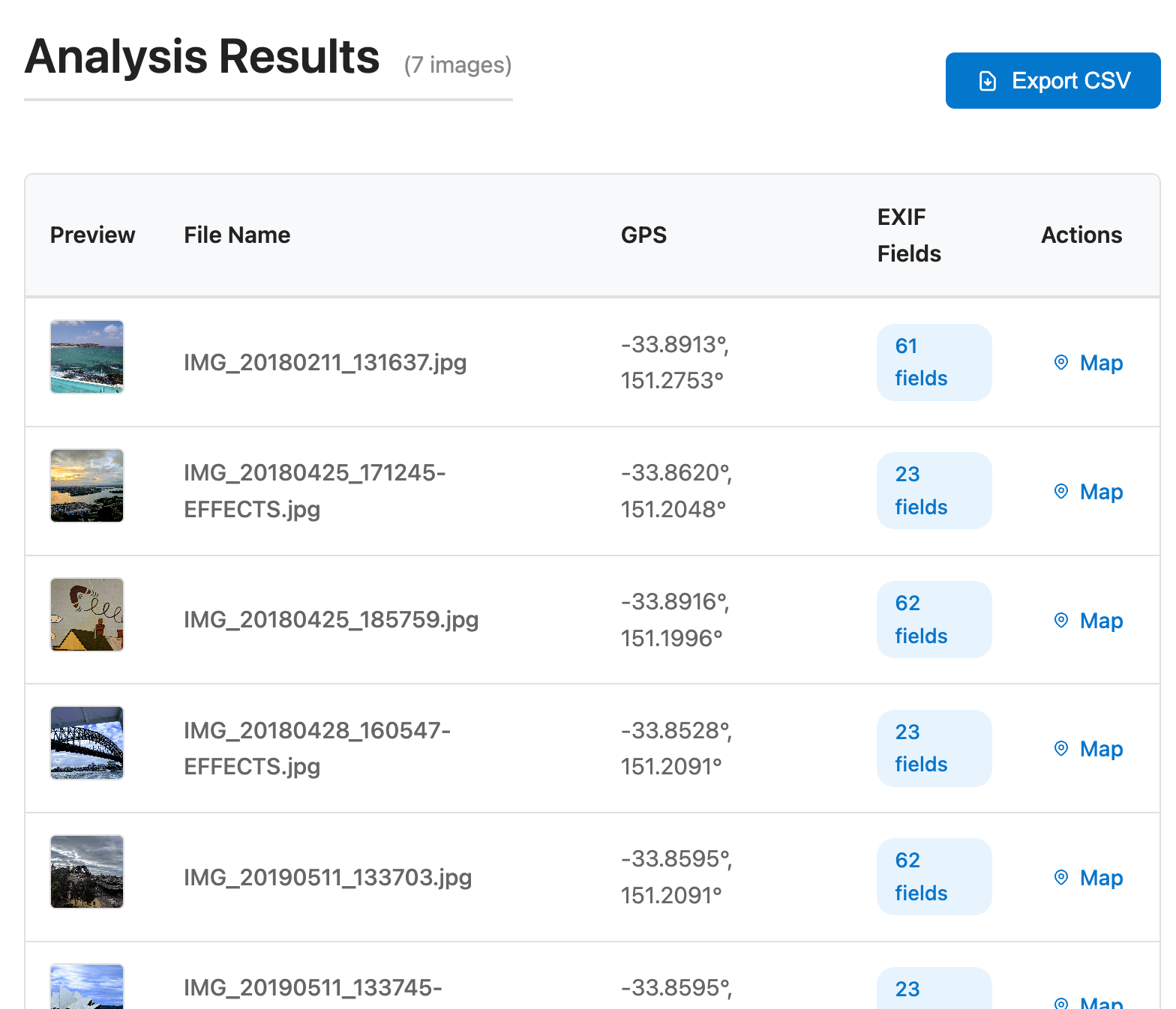
It’s as simple as that. From there, you can download the results to a CSV.
Taking Location Data Further
Extracting GPS data from photos is often just the first step. Once those locations are in a spreadsheet, they can be reused for organizing images, tracking trips, or combining photo locations with other datasets.
BatchGeo makes it simple to turn location data into a map, whether you’re visualizing photo locations, mapping customer addresses, or exploring any dataset that includes geographic information.