Where in the World Are Your Customers? A Guide to Mapping Your CRM Data
Your CRM contains more than just names and phone numbers. It holds the geographic story of your business: where your customers are concentrated, where your leads originate, and where you may not yet have a presence. The problem is that it’s not easy to see any of that in a simple list.
Mapping your data changes that. And if your information lives in multiple places, exporting and combining it into a single map makes the picture even clearer. We’ve covered the business case for mapping customer data before, and if you’re storing contacts in Google rather than a dedicated CRM, we’ve got a guide for that too. This article focuses on the how: specifically, how to get your contacts out of three of the most widely used CRMs— HubSpot, Salesforce, and Zoho CRM — and prepare them for mapping
A Note on Personally Identifiable Information (PII)
Before exporting, consider what data you actually need to display on the map. Names, email addresses, and phone numbers aren’t typically necessary for plotting locations. Unless you have a specific reason to include identifying details, strip it out before mapping. In most cases, company name, address, and any relevant business fields are all you need.
Exporting From HubSpot
HubSpot has the most straightforward export process of the three and works the same way whether you’re on a free or paid plan. You’ll just need super admin permissions.
Head to CRM and choose Contacts in the left sidebar. Select Actions in the top menu, then select Export all users or apply filters to export a specific subset.
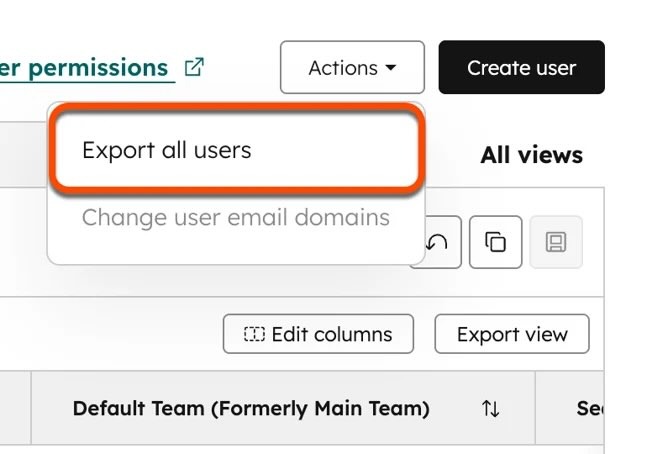
HubSpot will prompt you to choose your file format. Select CSV, then choose which properties to include. Stick to company name, address fields, and any business data relevant to your map. Once you Export,HubSpot will email you a download link shortly after.
The resulting CSV will be clean and ready to modify or map with no extra cleanup needed.
Exporting From Salesforce
Salesforce doesn’t have a direct export button on the Contacts page, so head to Reports instead.
Navigate to the Reports tab and create a New Report. Select Contacts and Accounts as your report type, then add the columns you need, including mailing address fields.
Interactive Maps Made Easy
Sign Up NowRun the report, then click Export in the top right.
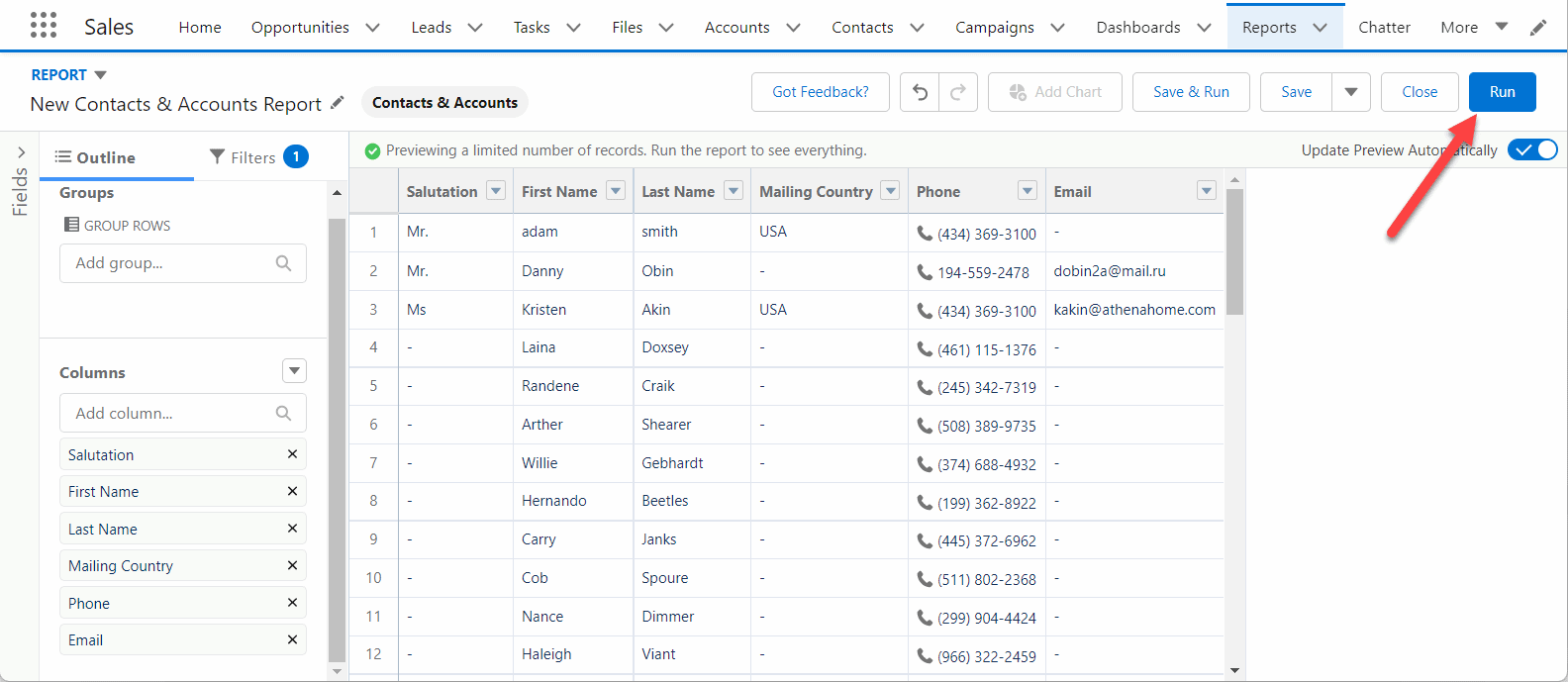
Choose CSV as your format and download the file. It’s a good idea to open the file first to confirm that the address fields exported correctly before mapping.
Exporting From Zoho CRM
Zoho’s export is straightforward, but you do need to be an admin. If your contact list is larger than 200,000 records, you’ll need to export in batches and combine the files into a single spreadsheet.
Go to Data Administration,select Export, then choose Start an Export.
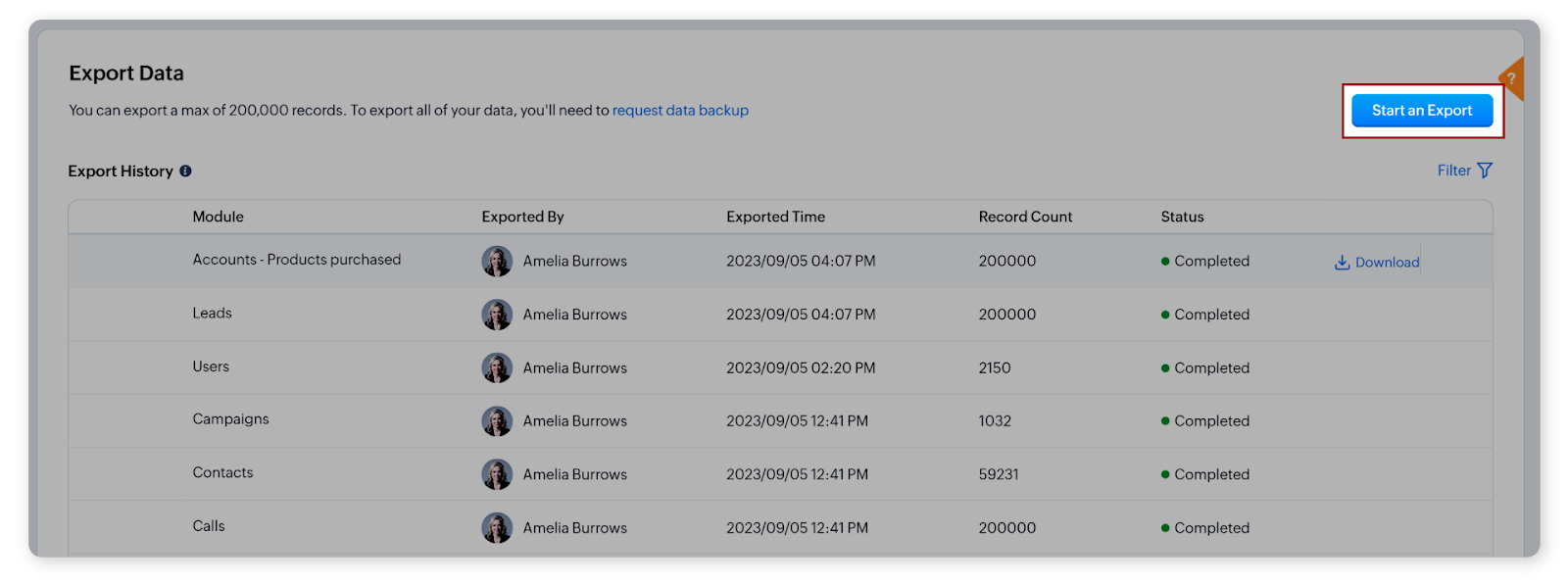
On the Export Data page, select a module, subform, or Notes from the Module dropdown list.
Then choose an option from the Custom View dropdown list, such as a standard List View, a custom List View, or Based on Criteria.
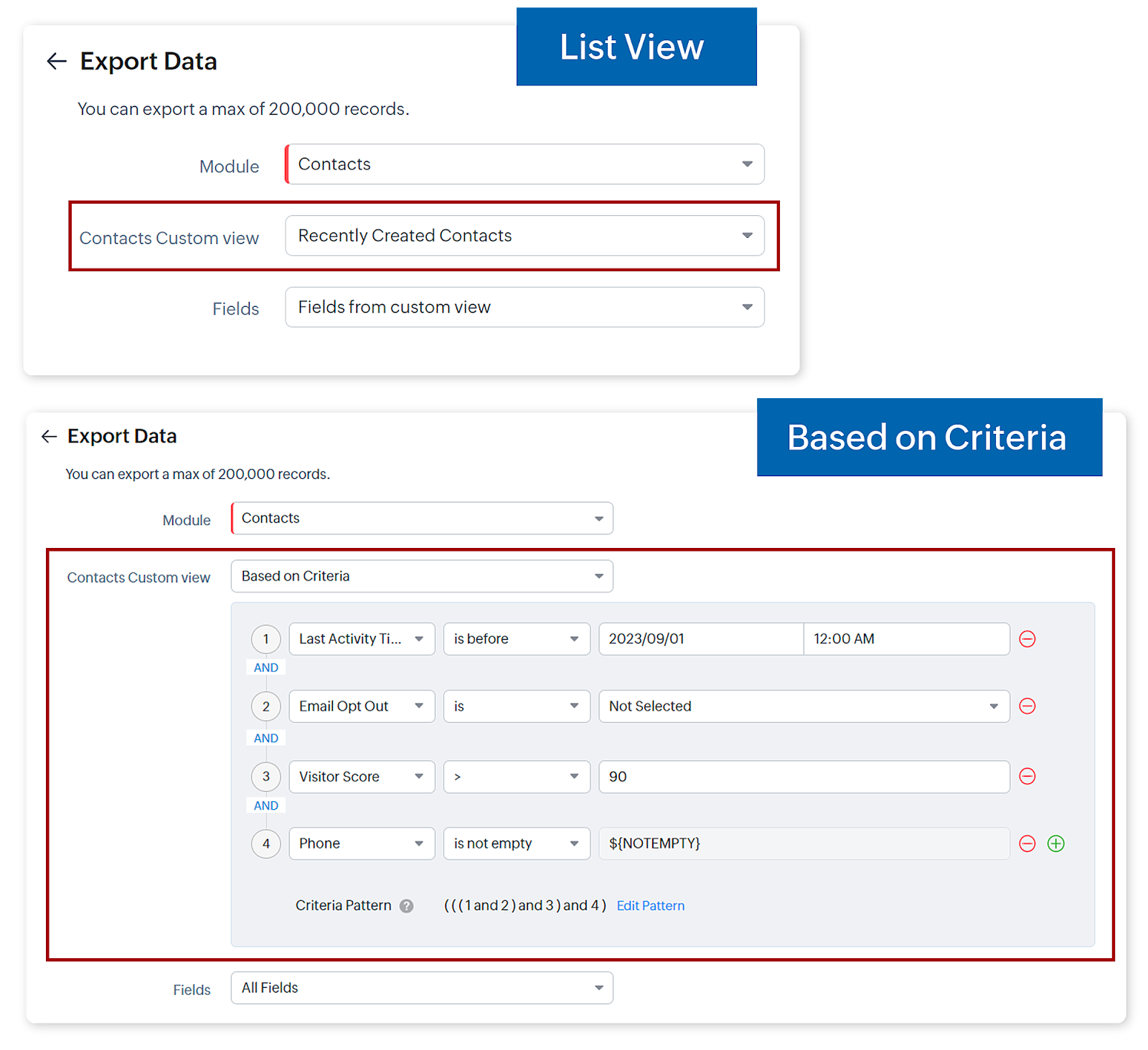
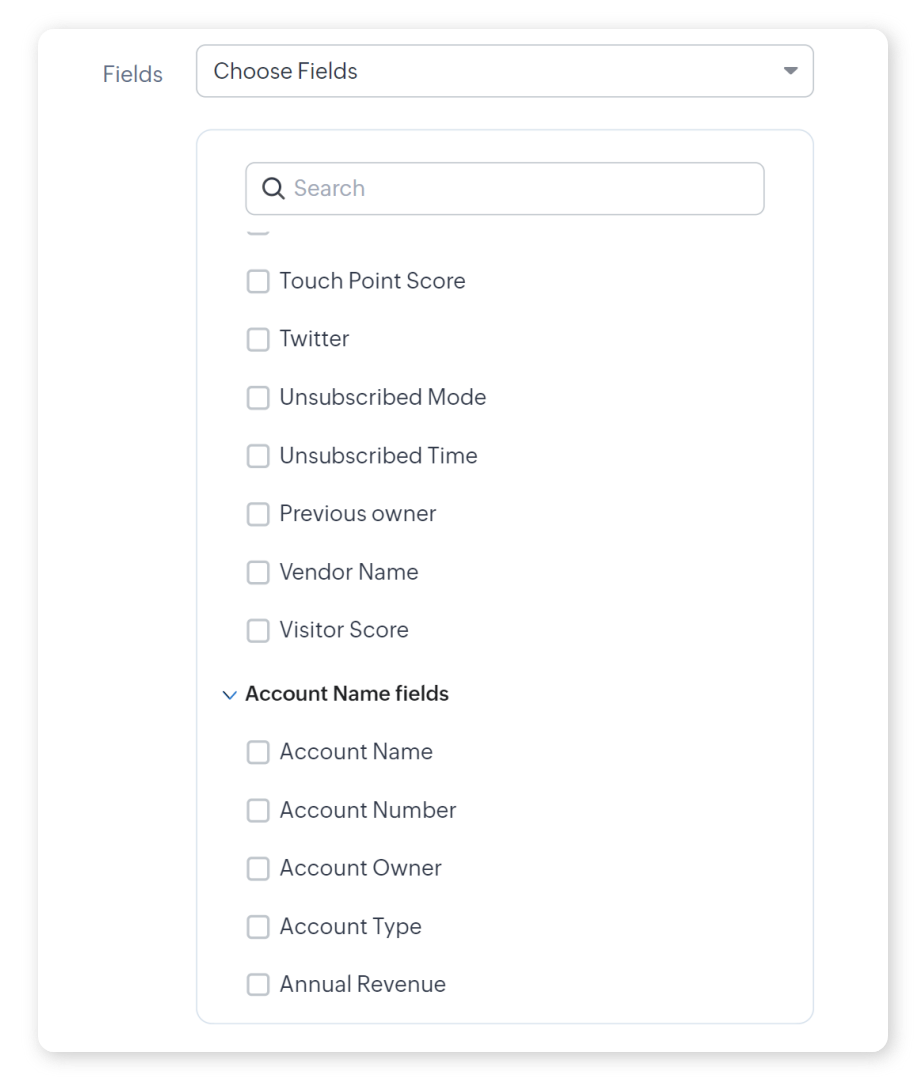
Select the Fields you want to export, then click Export. Download the generated file.
Preparing Your Data for Mapping
Regardless of which CRM you’re exporting from, take a moment to review your file. Make sure address fields are populated for the contacts you want to map, remove any columns you don’t need, and confirm there are no blank header cells. This is also where you’ll merge together multiple exports as needed.
Creating a Map in BatchGeo
Once your CSV is ready, paste it into BatchGeo. BatchGeo will geocode your addresses automatically, so even if your export doesn’t include latitude and longitude, your contacts will still plot correctly on the map.
View full screen map
Once your contacts are on a map, the patterns are hard to miss. You might find your best customers cluster in regions you haven’t fully staffed, or that a competitor’s territory overlaps with an area where your pipeline is thin. For a deeper look at what to do with your data once it’s on a map, check out our guide to business mapping and location analysis.
Whether you’re planning a sales trip, dividing territories, or just trying to understand where your business actually lives, a map gets you there faster than a spreadsheet. Paste your data and see where your customers are. Try BatchGeo for free!.